
The e-mail that you are logged into under must be the e-mail that is receiving the invoices for them to show up under your account. If you are not receiving the invoices but would like to, reach out to AR@usherwood.com to have your email added.
-
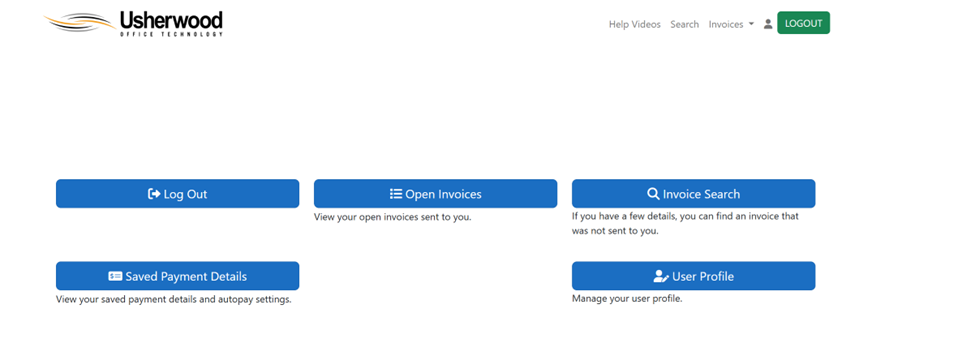
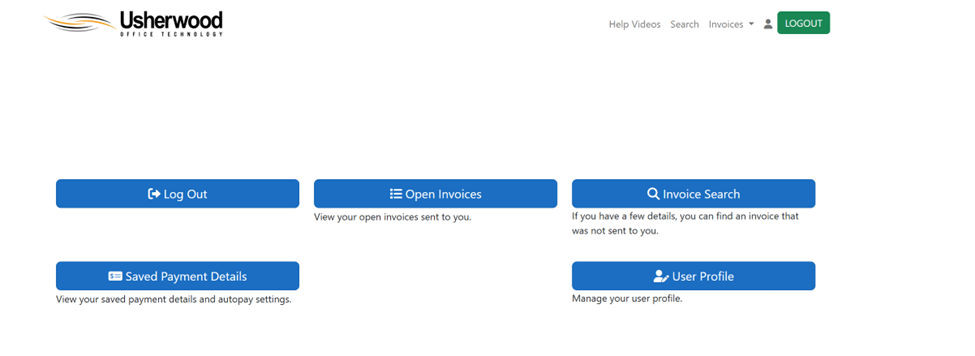
On the home screen click Open Invoices
-
This will take you to a list of invoices that you can view or pay.
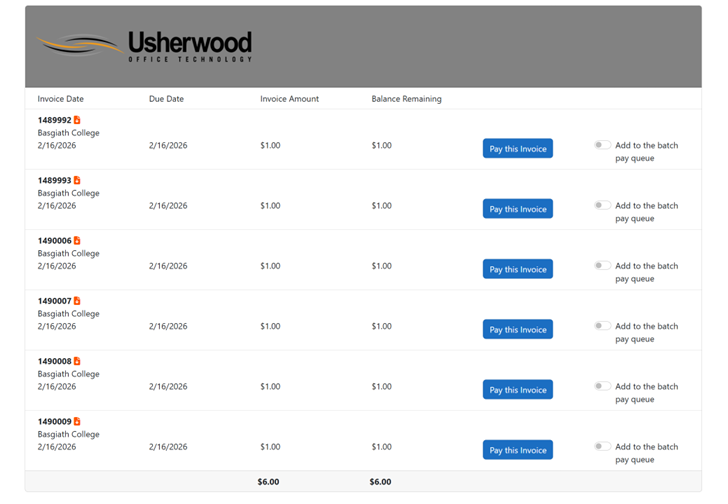
- To view an invoice click the orange paper icon next to the invoice number. This will prompt a PDF download of the invoice.
- To pay an individual invoice click “pay this invoice” and then fill in your payment information on the resulting screen.
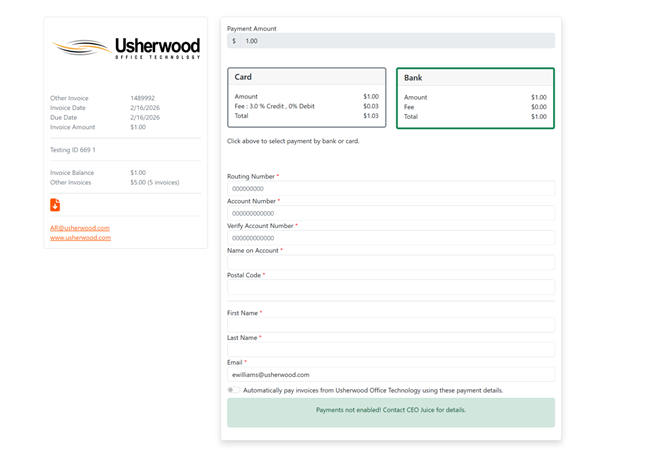
- To pay multiple invoices check the button that says “Add to the batch pay queue” on each invoice that you wish to pay. Then click the Pay button at the top or bottom of the screen. and then fill in your payment information on the resulting screen.
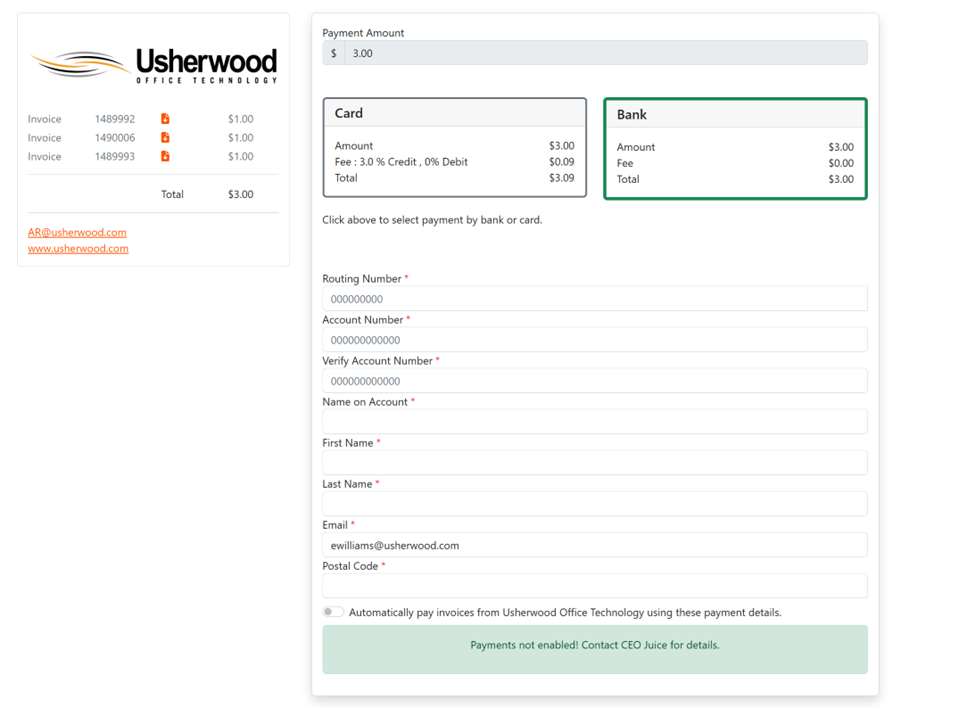
If an invoice is not showing up in your Open Invoices menu you can search for specific invoices if you have the invoice information.
-
On the home screen click on Invoice Search.
-
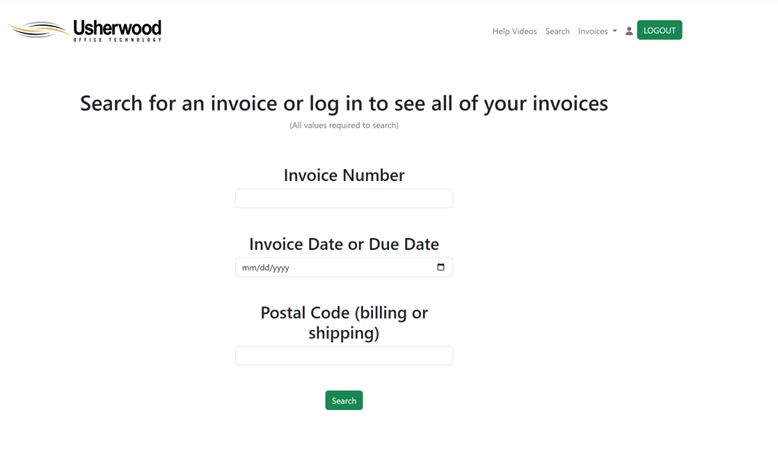
This will take you to a screen that you can search for the invoice. Fill in the invoice number, Invoice Date, and Postal Code from the invoice and click Search. Note- you need to fill in all three fields for it to work.
-
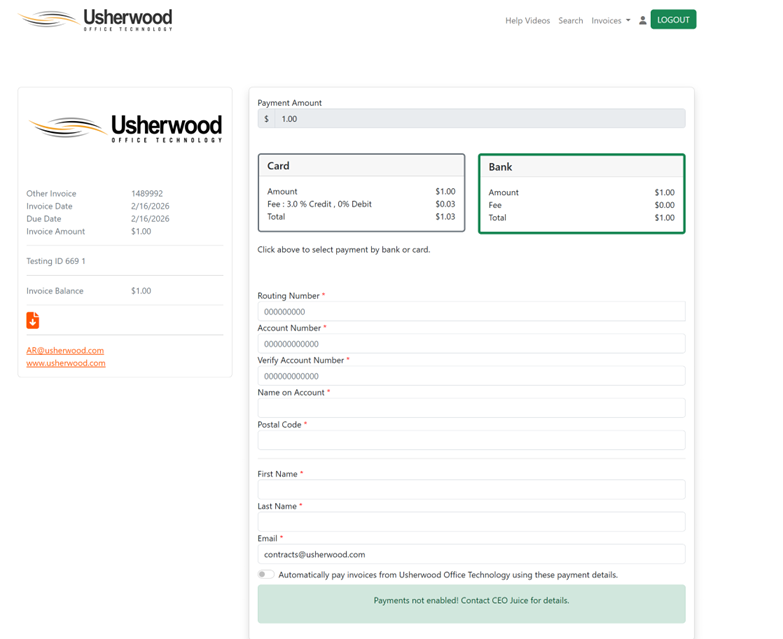
This will take you directly to the payment screen.
-
To view the invoice click the orange paper icon the left side menu to download a PDF copy of the invoice.
-
To pay the invoice fill out the payment information and click pay.
-
If you wish to pay multiple invoices at the same time but cannot see them in Open invoices please reach out to
with the list of invoices that you want to pay and they will be able to provide you with a bulk payment link for those invoices. If you would like to be able to see new invoices going forward in the portal reach out toAR@usherwood.com
to get added to the list of emails that receive the invoices.
Please note- to be able to set up auto pay you must have at least one invoice associated with your log in email. In order to have an invoice associated your email must be receiving the invoices. If you are not receiving the invoices and wish to start please reach out to AR@usherwood.com.
-
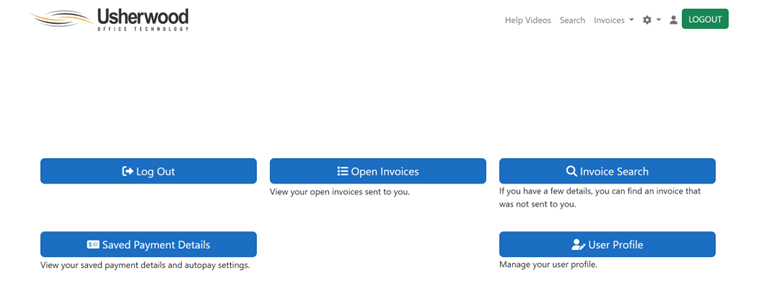
From the home screen click on Saved Payment Details
-
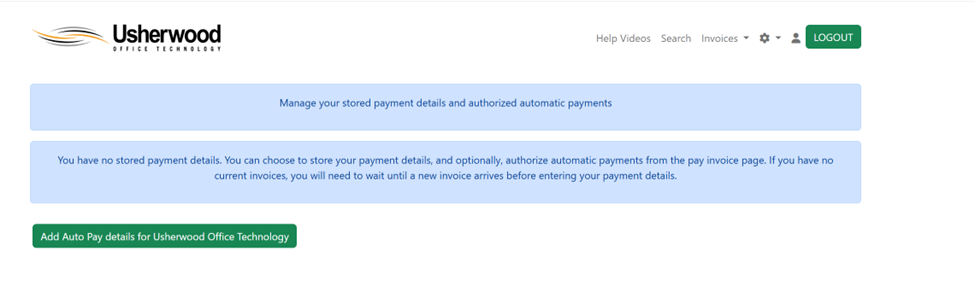
From this screen you can see existing auto-pay details or set up a new auto pay schedule.
-
To add a new auto-pay schedule click the “Add Auto Pay details for Usherwood Office Technology”
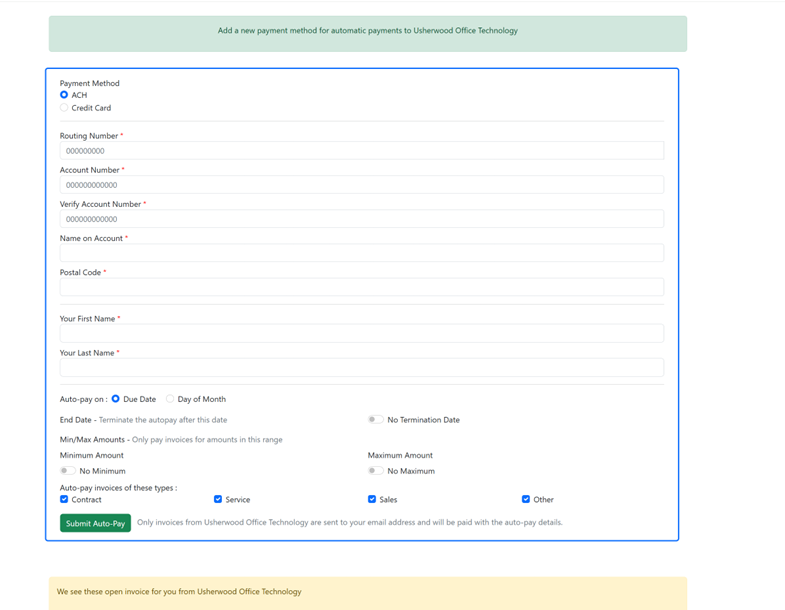
On the resulting screen fill out your ACH or Credit Card information.
-
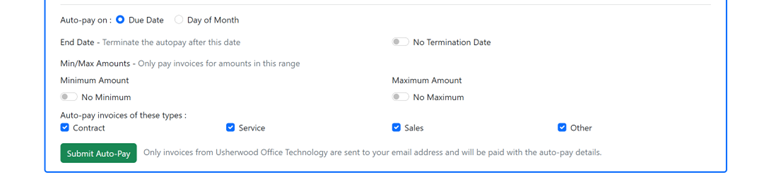
On the bottom is where you can set your auto pay preferences.
-
You can choose what date the money gets pulled- i.e. on the invoice due date or on a specific day of the month
-
How long auto pay runs for- i.e. if you want it to run indefinitely or if you want it to stop auto paying on a specific date.
-
A minimum or maximum amount that invoices need to meet to be included in the auto pay- i.e. only invoices under $1,000 get auto paid
-
What types of invoices you want to auto-pay- i.e. you may want to auto-pay your monthly contract invoices but not your sales invoices
-
Contract invoices are for recurring support contracts
- Service invoices are for billable service calls performed
- Sales invoice are for equipment orders, projects, and billable supply orders
- Other invoices would be miscellaneous invoices manually created (these are very uncommon)
-
-
-
Click the Submit Auto-Pay button at the bottom to create the Auto-Pay